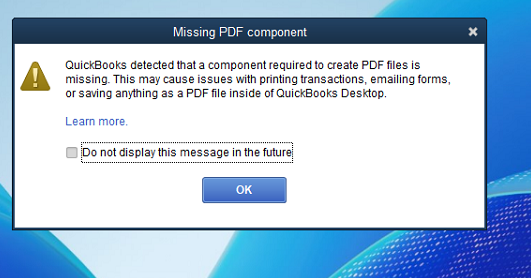
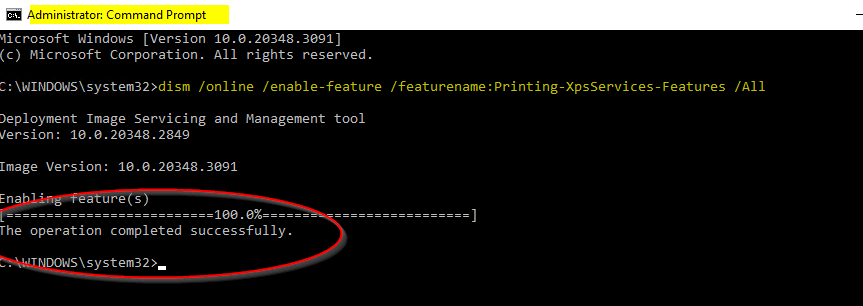
If you run into the error common with Quickbooks Desktop on Windows 10/11 or Server versions you can simply run this command from an elevated (Administrator) command prompt and it will fix it for you.
Both attributes are considered deactivated (as if the isDefunct attribute value were TRUE). The condition will resolve itself after the schema directory partition has replicated successfully.
User Action If this event continues to occur, initiate a replication cycle with all replication partners of the local directory service. If the condition persists, deactivate one of the above classes by setting the isDefunct value to TRUE.
Here is what I tried to do to fix the issue.
1. Fired up ADSIEdit and went to the Schema Configuration. From there, I found the attribute twice. Once was called msDS-GeoCoordinatesAltitude and the other was the same name, but appended to it was a GUID ID. Example:
2. I selected my bad object, in this case the GUID one. From there, I attempted to set the value of “isDefunct” from Not Set to True. When I did so, I got a nice error:
3. I thought, ok, so I need to take some permissions of the attribute first. I went and took ownership of the object, but got a nasty Access is Denied error. So that solution did not work.
4. I opened up a support case with Microsoft. First we worked on the issue for over 2 weeks via online method and they were unable to resolve it. I then opened a phone call support case. We spent about 3 1/2 hours on the phone and were not able to resolve. I was told, you must restore your Active Directory System state to a old backup. In this case, that was not going to fly because this object had been sitting on the server since 2013, and there was no backup prior to that date. I needed to figure out how to fix this. Here is what I did to resolve.
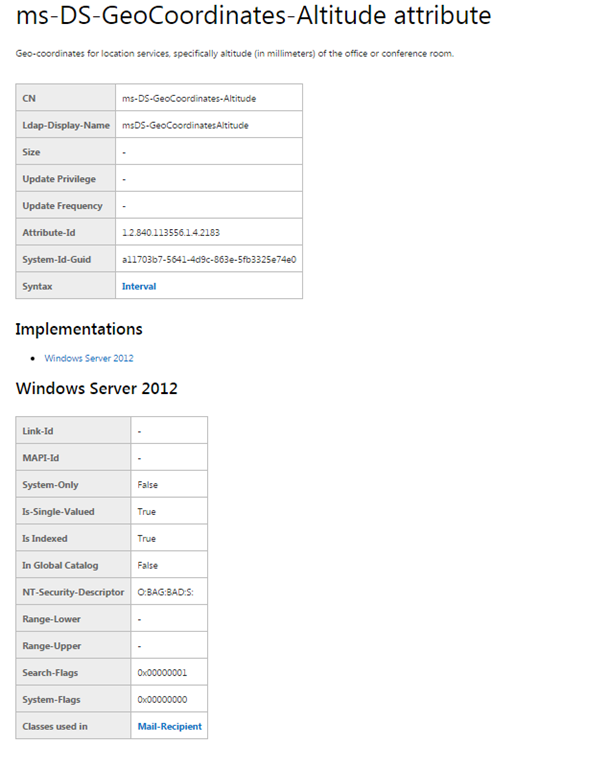
1. First I searched for the attribute ms-DS-GeoCoordinates-Altitude via google. I needed to know what Classes it was associated to. If you don’t know much about Active Directory and Schema, I suggest doing some reading on how Classes And Attributes relate. https://technet.microsoft.com/en-us/library/cc961753.aspx is a good start. The reason I could not change this setting is because of the maycontain list. In this case, the relationship to the attribute ms-DS-GeoCoordinates-Altitude is directly related to the classes Mail-Recipient . Using google, I found this at https://msdn.microsoft.com/en-us/library/hh446582(v=vs.85).aspx
2. Now that I know the classes it is used in, I need to remove the attribute from the class. Following a completely irrelivant article from Microsoft at https://support.microsoft.com/en-us/kb/887426 I used this as my somewhat guide to help me fix this. First I opened up MMC and added the Active Directory Schema.
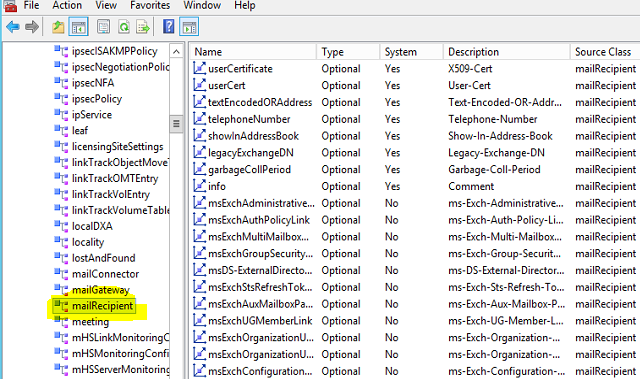
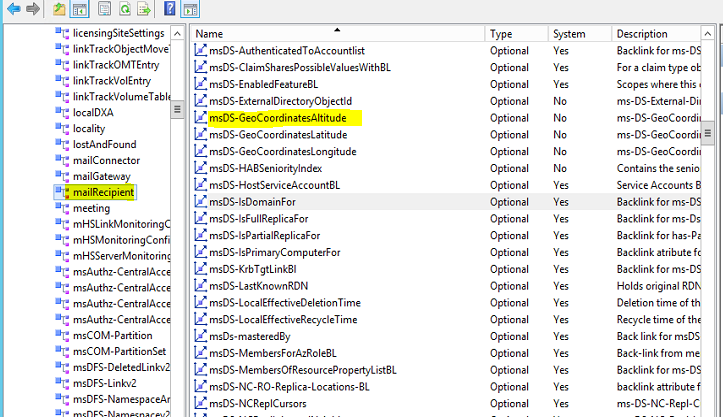
3. From there, I selected the Classes called MailRecipient. Example:
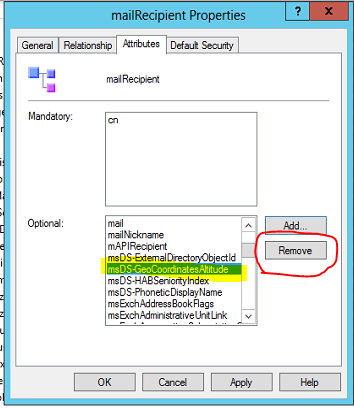
4. Select the Properties of it, and then go to the Attributes Tab. Once there, I selected in the Optional: section my attribute ms-DS-GeoCoordinates-Altitude. I then selected Remove.
One thing to note, I did not see the BAD attribute called ms-DS-GeoCoordinates-AltitudeCNF:5975a11a-a52c-461e-ab43-3e0497314812 listed here. I am unsure why that is.
5. Now I hit OK and closed out of this.
6. Back in ADSIEdit, I selected the attribute ms-DS-GeoCoordinates-AltitudeCNF:5975a11a-a52c-461e-ab43-3e0497314812 . I then took ownership of the attribute and applied it. I then modified the security of the user “Schema Admins” and selected Full Control.
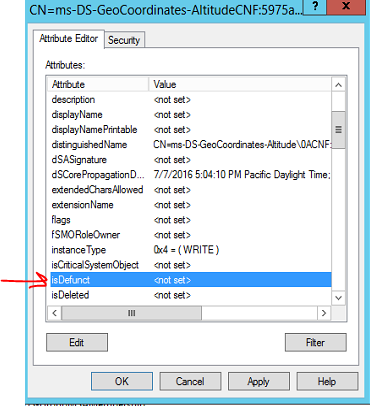
7. On the Attribute Editor tab, I selected the Attribute called isDefunct. I changed this from Not Set to TRUE.
8. This time when I hit OK, I got no nasty error. This was great progress. I can see in the event log it is now deactivated:
9. This is a good thing. The attribute is now deactivated. The next thing to do is add the other attribute back to our class.
10. Back in our Active Directory Schema MMC, I selected my Class called MailRecipient and selected Properties. Then select the Attributes TAB.
11. Select the Add button and find the attribute that we removed in step 4. Now add it back to the class.
12. Hit OK, and then OK again. In my console, I got an error that the MMC crashed. Rather odd. I closed it down and re-opened it.
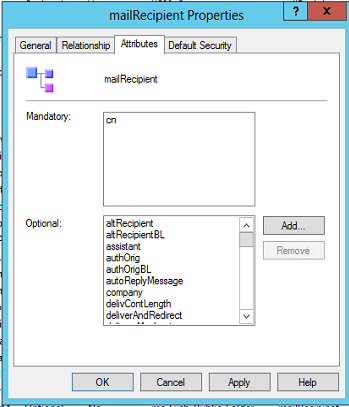
13. I verified that the attributes are now associated with the class. Here is my screenshot.
14. I verified in the event log that my object is now disabled. I restarted the Active Directory Domain Services Service and checked the event log to confirm it is now working.
I hope this helps someone else in a bind on trying to fix this issue.
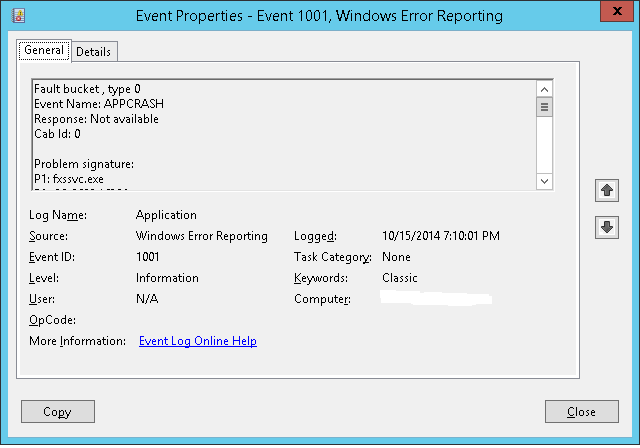
Recently I was migrating a client from Windows SBS 2008 to Windows Server 2012 R2. One of the applications they used was the Microsoft Fax Service for sending out an occasional fax. Once I added the Fax Role and attempted to send a fax, I noticed that the fax would make a phone call, ring the destination fax, and then just fail. In the event log, I saw
Fault bucket , type 0 Event Name: APPCRASH Response: Not available Cab Id: 0
After doing some research on the issue, I opened a case with Microsoft. Microsoft support did some research and come to find out, it is a bug/issue that has existed since 2008. A hotfix was released for Windows 2008 and Windows 2008 R2, but it was never followed up again to be fully fixed in 2012 or 2012 R2. But don’t let that stop us, there is a solution that does fix the issue!
1. On a Windows 2008 or 2008 R2 server, install the Fax Role.
3. Install the hotfix on your Windows 2008 or 2008 R2 Server.
4. If you have not added the Fax Role on your 2012 or 2012 R2, do that now.
5. Stop the service called Fax on your Windows 2012 or 2012 R2 Server.
6. On your Windows 2012 or 202 R2 Server, go to the file C:\Windows\System32\FXST30.dll and take ownership and full permissions of the file. I suggest renaming the file to FXST30.dll.old
6. Copy the file C:\Windows\System32\FXST30.dll from your Windows 2008 or 2008 R2 Server to your Windows 2012 or 2012 R2 Server to C:\Windows\System32\FXST30.dll
7. Restart the Fax service on your Windows 2012 or Windows 2012 R2 Server.
You can now use the Fax service and not have it crash every time you fax!
If you are running Windows Server 2008 or Server 2012 in a Virtual Environment and would like to use a fax modem, I suggest checking out a product called USB Redirectorhttp://www.incentivespro.com/usb-redirector-client.html
I used this product in this situation using a Windows 2012 R2 Hyper-V configuration.
Recently I had a customer who needed us to setup the ability to scan to a SMB share. I reviewed the manual which provided basic information but after following it, I could not get the scanner to save the scanned document on the server. We contacted the copier company and the information they provided did not resolve the issue. Using a packet capture tool, I was able to see why it was not working and able to resolve. I have put this post together to help others who may run into this.
1. Create a folder on the server/workstation. In this case I made a folder called “Scans” off of C:\Scans.
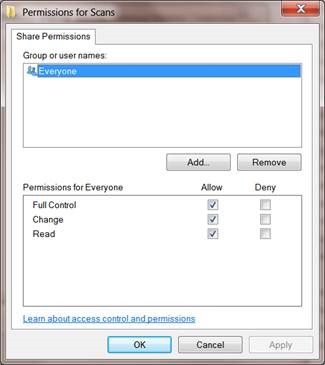
2. Next Share that folder with Everyone in the share and give it full control. In my example the share is called “Scans”
3. Since the Server/Workstation is on a domain, I need to create a domain account. In my case, I created a domain account called “Konicascan” and set a password for it. Please note that my NETBIOS domain\workgroup name in this example is “PS”. We will need that info later.
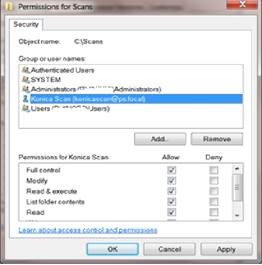
4. On the folder I created C:\Scans I set the NTFS permissions for my account “Konicascan” to have full control.
5. Now let’s program the Konica/Minolta Bizhub. Login to the device using a web browser. Select Login as Administrator. Please note the default password on my unit is “12345678“.
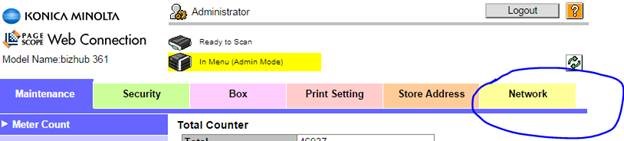
6. Now click on the Network Tab.
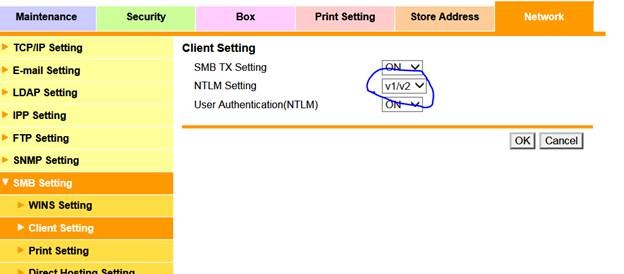
7. On the left side select SMB Setting, Client Setting. In the box NTLM Setting, change the value to v1/v2 if you are using Windows XP SP2, Vista or higher operating system as shown below, and then click OK
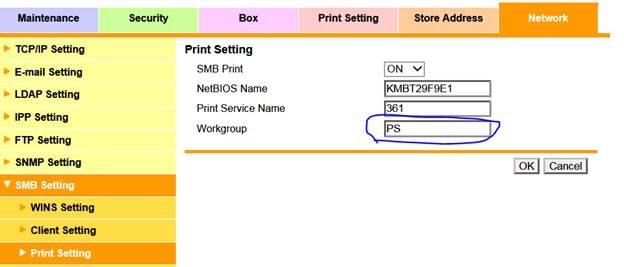
8. Now still under the SMB Setting, select Print Setting. Then in the Workgroup field enter in the NETBios Domain name or the Workgroup in CAPS. In this example my Server\Workstation is joined to a domain called PS. Then click OK.
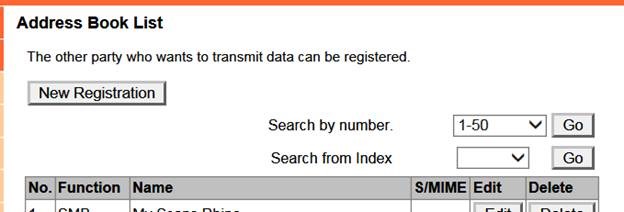
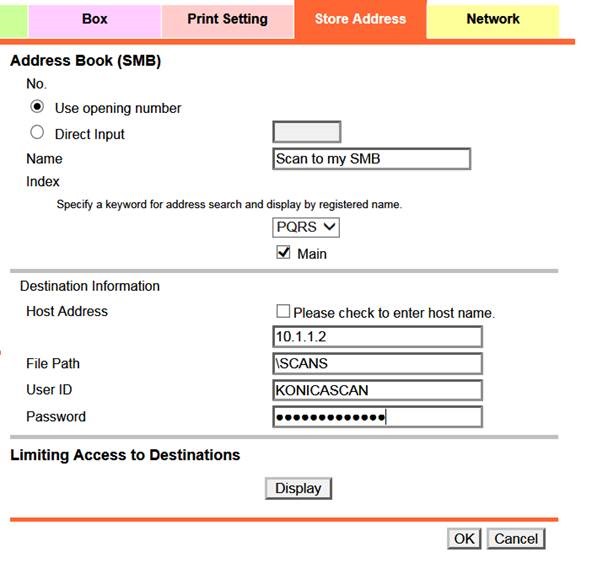
9. Now click on the Store Address Tab. You will then be in the Address Book. The address book on the Konica/Minolta is used like a directory and settings for scanning, emailing, faxing, etc. Select New Registration or edit an existing SMB registration by clicking Edit. In my case I am selecting New Registration.
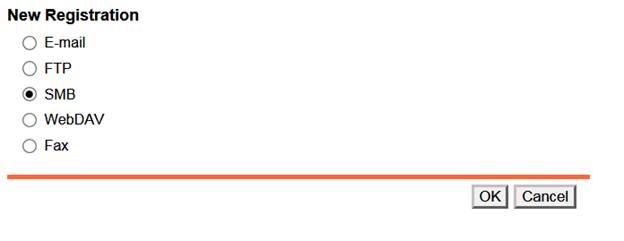
10. I then select SMB and select OK.
11. Under the No. radio button I select Use opening number. You can of course select a number which is relative to where you want the icon to appear on the copier, with 1 being the first or highest number.
Then in the Name field enter in a name for the Icon on the copier. In the Index selection, I selected PQRS since my name starts with “Scan to my SMB”. I also checked the Main box.
In the Destination Information, for Host Address enter in the IP address of the Server\Workstation where we crated the share at. If you want to use a name instead of the IP Address, check the box, Please check to enter host name. For the File Path, I entered \SCANS since my share is called SCANS. Please note to enter this is all CAPS.
For the User ID, I entered in my domain user account I created in step 3, in this example KONICASCAN, this should also be in CAPS. Then type in the password for the user account, and click OK.
There you have it! You can now scan on the copier to your share.
Important things to note. The reason we need to change the Workgroup in Print Settings is because the Konica/Minolta does not support us entering in the user name like NETBIOSNAME\UserName, or in this example PS\KONICASCAN. A lot of other brand copiers like Canon or Ricoh will allow you to enter in the NETBios\UserName. In order for it to pass authentication to the share, it appends the username with the Workgroup from the Print Settings section. This I discovered by using WireShark and capturing the packets. Another important thing to note is to make sure to set the NTLM settings to v1/v2 as Windows XP SP2, Vista/7 and higher use NTLM v2.
Recently I discovered an issue with Lenovo T430U notebooks having an issue where when you launch Microsoft Outlook 2013 it would just sit on the blue splash screen stating “Processing”. After capturing a lot of logs and being really stumped, I reached out the Microsoft support team. Here was the solution that was provided:
Disable hardware acceleration
Run regedit
Browse to HKEY_CURRENT_USER\Software\Microsoft\Office\15.0\Common
Create a New Key and name it "Graphics"
Select Graphics, right-click on the right panel and create a New DWORD (32-bit) Value and name it DisableHardwareAcceleration.
Enter Value data as 1
Once I did this, the problem was resolved. I decided to see if it was a driver causing my issue since I now had graphics acceleration disabled. I ran the Lenovo system updates 5 on the computer. It downloaded the updates and installed, but I noticed it never selected the NVidia graphics driver as well as this unit also has a Intel 4000 graphics engine on it that it never found any updates for. I manually downloaded these from NVidia and a customized one from Lenovo for the Intel driver. After installing and rebooting, I changed the registry key to a value of 0 so hardware acceleration is now on which is the default. Outlook 2013 now opens correctly.
If you run into an issue like this, try and update the graphics drivers, or as a last ditch effort, disable hardware acceleration.
After writing up this article, I was able to find a Microsoft support KB article 2761977 which talks about a similar issue. My issue did not come up finding this article, but glad it is documented as well.
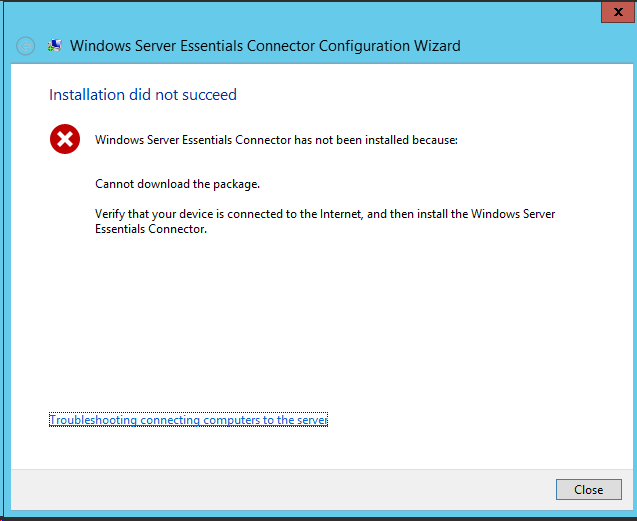
Consider this. You are running Windows Server 2012 R2 RTM with the Essentials role added, or you are running Windows Server 2012 R2 Essentials RTM (non preview version). After configuring the basic tasks like users, you go to each workstation to run http://server/connect and receive the error
Windows Server Essentials Connector has not been installed because “cannot download the package”. Here is an example of the error:
Clicking on the Troubleshooting connecting computers to the server link results in no help.
I have confirmed this happens on clients running Windows 7, Windows 7 SP1, Windows 8 and Windows 2012 R2 (Windows 8.1).
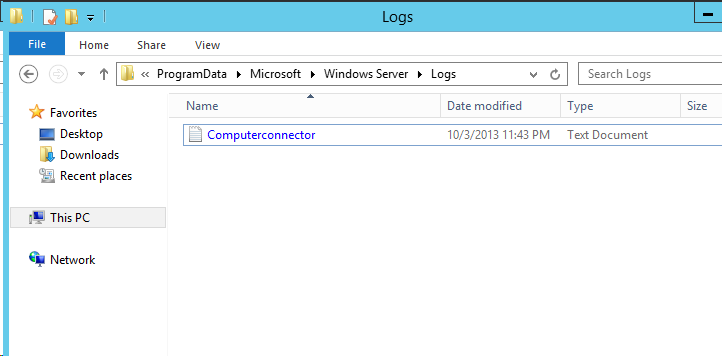
So why is it happening? Let’s take a look at the logs.
In that folder you will find a file called Computerconnector.txt . We will open this up to help us figure out why it is happening. Let’s take a look.
Here is the entire log. Look at the highlighted text
[10/04/2013 00:10:06 5cc] CComputerconnector::TaskDlgProc: IDD_PROPPAGE_TASKS Page Initialization [10/04/2013 00:10:06 5cc] CComputerconnector::TaskDlgProc: DIALOG_UPDATE: Running [10/04/2013 00:10:06 8ec] CComputerconnector::RunTasks: Running Task: Id=-1 Description=Detecting the current system requirements… Index= 0 [10/04/2013 00:10:06 8ec] CMsi::IsMsiInstalled: MsiQueryProductState for ProductCode {21E49794-7C13-4E84-8659-55BD378267D5} returned -1 [10/04/2013 00:10:06 8ec] CMsi::IsMsiInstalled: MsiQueryProductState for ProductCode {46DCED50-3A1D-4EF4-94F0-45F2681E3D70} returned -1 [10/04/2013 00:10:06 8ec] CMsi::IsMsiInstalled: MsiQueryProductState for ProductCode {C1E4D639-4A33-4314-809E-89BD0EF48522} returned -1 [10/04/2013 00:10:06 8ec] Connector installation state is 0 [10/04/2013 00:10:06 8ec] CComputerconnector::RunTasks: Running Task: Id=-1 Description=Downloading .NET Framework 4.5… Index= 1 [10/04/2013 00:10:06 8ec] CComputerconnector::RunTasks: Running Task: Id=-1 Description=Installing .NET Framework 4.5… Index= 2 [10/04/2013 00:10:06 8ec] CComputerconnector::RunTasks: Running Task: Id=-1 Description=Downloading the Connector… Index= 3 [10/04/2013 00:10:06 8ec] NetworkUtil::DownloadFromLocal(pData, Windows8.1-KB2790621-x64.msu) [10/04/2013 00:10:06 8ec] NetworkUtil::DownloadFromLocal: the package could not be found in current program location [10/04/2013 00:10:06 8ec] NetworkUtil::DownloadFromServer(pData, Connect/default.aspx?Get=ClientCore.cab&os=Windows8.1&amd64=1, ClientCore.cab) [10/04/2013 00:10:06 8ec] NetworkUtil::DownloadFile(pData, Connect/default.aspx?Get=ClientCore.cab&os=Windows8.1&amd64=1, C:\Windows\Temp\ClientDeploymentTempFiles\ClientCore.cab, 443, HTTPS) [10/04/2013 00:10:06 8ec] NetworkUtil::DownloadFile (https://192.168.1.4:443/Connect/default.aspx?Get=ClientCore.cab&os=Windows8.1&amd64=1, C:\Windows\Temp\ClientDeploymentTempFiles\ClientCore.cab) [10/04/2013 00:10:06 8ec] NetworkUtil::DownloadFile – Create directory [C:\Windows\Temp\ClientDeploymentTempFiles] if not exist. [10/04/2013 00:10:06 8ec] NetworkUtil::_WinInetDownloadFile (https://192.168.1.4:443/Connect/default.aspx?Get=ClientCore.cab&os=Windows8.1&amd64=1, C:\Windows\Temp\ClientDeploymentTempFiles\ClientCore.cab) [10/04/2013 00:10:06 5cc] CComputerconnector::TaskDlgProc: DIALOG_TASK_PROGRESS: Task Description: Detecting the current system requirements… [10/04/2013 00:10:06 5cc] CComputerconnector::TaskDlgProc: DIALOG_TASK_PROGRESS: Task Description: Downloading .NET Framework 4.5… [10/04/2013 00:10:06 5cc] CComputerconnector::TaskDlgProc: DIALOG_TASK_PROGRESS: Task Description: Installing .NET Framework 4.5… [10/04/2013 00:10:06 5cc] CComputerconnector::TaskDlgProc: DIALOG_TASK_PROGRESS: Task Description: Downloading the Connector… [10/04/2013 00:10:06 8ec] InternetOpenUrl (https://192.168.1.4:443/Connect/default.aspx?Get=ClientCore.cab&os=Windows8.1&amd64=1) returns 12045 [10/04/2013 00:10:06 8ec] _WinInetDownloadFile returns 0x80072f0d. [10/04/2013 00:10:06 8ec] NetworkUtil::DownloadFromServer:DownloadFile(https://192.168.1.4:443, Connect/default.aspx?Get=ClientCore.cab&os=Windows8.1&amd64=1, C:\Windows\Temp\ClientDeploymentTempFiles\ClientCore.cab) failed with hr = 0x80072f0d. Try http. [10/04/2013 00:10:06 8ec] NetworkUtil::DownloadFile(pData, Connect/default.aspx?Get=ClientCore.cab&os=Windows8.1&amd64=1, C:\Windows\Temp\ClientDeploymentTempFiles\ClientCore.cab, 80, HTTP) [10/04/2013 00:10:06 8ec] NetworkUtil::DownloadFile (http://192.168.1.4:80/Connect/default.aspx?Get=ClientCore.cab&os=Windows8.1&amd64=1, C:\Windows\Temp\ClientDeploymentTempFiles\ClientCore.cab) [10/04/2013 00:10:06 8ec] NetworkUtil::DownloadFile – Create directory [C:\Windows\Temp\ClientDeploymentTempFiles] if not exist. [10/04/2013 00:10:06 8ec] NetworkUtil::_WinInetDownloadFile (http://192.168.1.4:80/Connect/default.aspx?Get=ClientCore.cab&os=Windows8.1&amd64=1, C:\Windows\Temp\ClientDeploymentTempFiles\ClientCore.cab) [10/04/2013 00:10:07 8ec] Download from url: http://192.168.1.4:80/Connect/default.aspx?Get=ClientCore.cab&os=Windows8.1&amd64=1 failed with HTTP error 404 [10/04/2013 00:10:07 8ec] _WinInetDownloadFile returns 0x8000ffff. [10/04/2013 00:10:07 8ec] NetworkUtil::DownloadFromServer:DownloadFile(http://192.168.1.4:80, Connect/default.aspx?Get=ClientCore.cab&os=Windows8.1&amd64=1, C:\Windows\Temp\ClientDeploymentTempFiles\ClientCore.cab) failed with hr = 0x8000ffff. [10/04/2013 00:10:07 8ec] NetworkUtil::DownloadFromDLC(pData, http://go.microsoft.com/fwlink/p/?LinkId=275102, Windows8.1-KB2790621-x64.msu) [10/04/2013 00:10:07 8ec] NetworkUtil::DownloadFile (http://go.microsoft.com/fwlink/p/?LinkId=275102, C:\Windows\Temp\ClientDeploymentTempFiles\Windows8.1-KB2790621-x64.msu) [10/04/2013 00:10:07 8ec] NetworkUtil::DownloadFile – Create directory [C:\Windows\Temp\ClientDeploymentTempFiles] if not exist. [10/04/2013 00:10:07 8ec] NetworkUtil::_WinInetDownloadFile (http://go.microsoft.com/fwlink/p/?LinkId=275102, C:\Windows\Temp\ClientDeploymentTempFiles\Windows8.1-KB2790621-x64.msu) [10/04/2013 00:10:07 8ec] Download from url: http://go.microsoft.com/fwlink/p/?LinkId=275102 failed with HTTP error 404 [10/04/2013 00:10:07 8ec] _WinInetDownloadFile returns 0x8000ffff. [10/04/2013 00:10:07 8ec] NetworkUtil::DownloadFromDLC: NetworkUtil::DownloadFile(http://go.microsoft.com/fwlink/p/?LinkId=275102, C:\Windows\Temp\ClientDeploymentTempFiles\Windows8.1-KB2790621-x64.msu) failed with hr = 0x8000ffff. [10/04/2013 00:10:07 8ec] CComputerconnector::RunTasks: Task Id=-1 Description=Downloading the Connector… Failed [10/04/2013 00:10:07 8ec] CComputerconnector::Run: RunTasks: 0x8000ffff [10/04/2013 00:10:07 5cc] CComputerconnector::TaskDlgProc: DIALOG_UPDATE: FatalError [10/04/2013 00:10:07 5cc] CComputerconnector::ErrorDlgProc: IDD_PROPPAGE_ERROR Initialization [10/04/2013 00:10:15 5cc] wmain: End of Computerconnector: hr=0x80004005
The issue is being caused from a HTTP 404 error.
There are two errors here. The first is it is trying to get a file ClientCore.cab from the Essentials server. Upon looking at the server, I do not find this file anywhere. Additionally, you can see it is trying download this file to C:\Windows\Temp\TempFiles\ but the file does not exist. It then moves on from this and gets the second fatal 404 error. You see Essentials connect tool client needs to download an update for your operating system. When it tries, the Microsoft server replies that the file doesn’t exist and thus we get the failure.
So how do we further troubleshoot this and fix it?
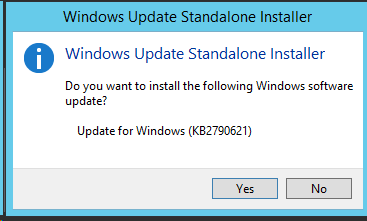
From here we can download the appropriate package for our operating system.
If you are running Windows 7 please select either Temp\Windows6.1-KB2790621-x86.msu.msu or Temp\Windows6.1-KB2790621-x64.msu.msu depending on which version operating system x86 or x64 you are using.
If you are running Windows 8, Windows 8.1, Windows Server 2012 or Windows Server 2012 R2 please select either Temp\Windows8.1-KB2790621-x86.msu.msu or Temp\Windows8.1-KB2790621-x64.msu.msu depending on which version operating system x86 or x64 you are using.
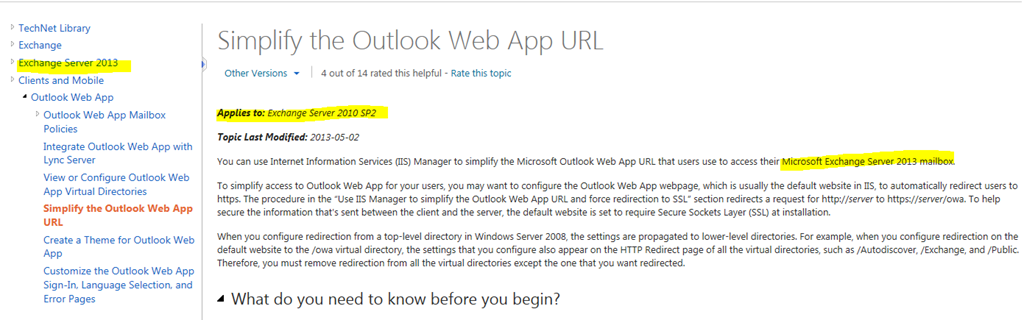
We use this method in order to redirect users to a secure page. For example, say your OWA page is https://mail.domain.com/owa and the end user doesn’t type in “HTTPS” and instead just goes to http://mail.domain.com/owa. They would get an error message that the page cannot be reached. In order to make this easier on the end user, we can use a redirect to take them from http to HTTPS. Unfortunately though, the TechNet article listed above is incorrect.
Here are the parts to that article that are incorrect.
#1. It is under the category for Exchange 2013 but states at the top of the article it apples to Exchange Server 2010 SP2. If you read the article you can see they just cut and pasted it from Exchange 2010 and did a find and replace for 2010 to 2013. Not sure who at Microsoft did this without actually checking it, but sure enough, it is that way currently.
#2. It states in the article to modify the permissions on the offline address book web.config file on the CAS server. If you have a CAS server and Mailbox server, the file will not exist on the CAS server. I have confirmed that the OAB exists on the mailbox server, as stated at http://technet.microsoft.com/en-us/library/aa998359%28v=exchg.150%29.aspx
#3. By following the method in the TechNet article you will result in login problems on the HTTPS page.
So how do we go about fixing it so it does work?
In order to redirect the HTTP (80 port) to our right address, we can create an Error Page that has the redirection action built-in and these are the main steps:
1. Open IIS
2. Expand Sites and click on Default Web Site
3. Double click on Error pages icon on located on the right side
4. Then click on Add. on the right side (Toolbox Actions)
5. In the new window, type 403.4 on the first field,and select Respond with a 302 redirect and then type in the address of you OWA (using HTTPS and /OWA to make things easier), click OK.
In order to refresh the configuration you can run an IISReset.
Note: Even if you are testing locally, do not use localhost on the Absolute URL field.
I hope Microsoft updates their TechNet page with correct information.
I sometimes come across customers that would like to relay email through their Exchange Sever from external clients and maybe use a different sending address. Here is how I configure this.
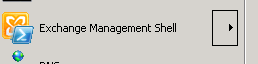
First, we will create a new receive connector via the Exchange Powershell. To do so, open up the Exchange Management Shell (powershell)
Now we have created the Receive Connector, and you will see this in the Exchange Management Console.
Let’s check our work, even though it was only one line of text
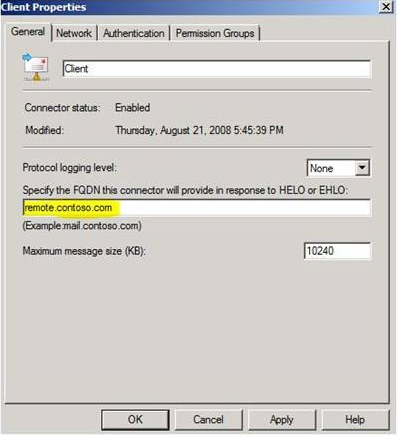
Now we can verify the network, authentication, and permission groups settings to see how a Client receive connector has been configured. If you go to the properties, you will see that it’s listening on port 587, that it has enabled Basic authentication over TLS, and that it is only allowing Exchange Users (Authenticated Users) to connect. You will see all of this by looking at the connector in the Exchange Management Console.
NOTE: Make sure that port 587 is open in your firewall or this will not work for external users
Further inspection of the AD permissions on the receive connector show that authenticated users have the ms-Exch-SMTP-Accept-Any-Recipient right. This is the correct relay permission and you should never have it be owned by anonymous users. You can view and verify this by running the following powershell command:
Get-ADPermission “ExternalRelay” | where {$_.ExtendedRights -match “ms-Exch-SMTP-Accept-Any-Recipient”} | fl
You will see the output looking like:
If it says under user “NT AUTHORITY\ANONYMOUS” then you have an open relay. Stop and delete the connector!
Next, we need to set some additional parameters to make this work.
To allow the authenticated user to be able to send email with a different address, we will use the following powershell command
If you are running an SBS 2008 or SBS 2011 server, this also applies:
If you have successfully run the Internet Address Management Wizard from the SBS Console, then your Exchange certificate for TLS has already been installed and configured. You can verify this by running the Get-ExchangeCertificate commandlet and find the certificate with your external DNS domain name. The certificate will have IPWS listed under Services, which stands for IMAP, POP, Web and SMTP respectively.
At this point, make sure that your Client receive connector is configured with the same FQDN that is listed in the subject of your Exchange certificate. This will be displayed in the banner:
Once all of this is done, you are ready to setup Outlook, Outlook Express, Windows Mail, etc. Important points here are:
The client machine must trust both the Exchange certificate and the Root CA in which it was created from. A good test is to open IE on the client and browse OWA to see if you get the certificate warning(s).
You must configure the mail client to connect on port 587 and to send the proper credentials for authentication.
The server requires a TLS connection, you must specify this in the mail client
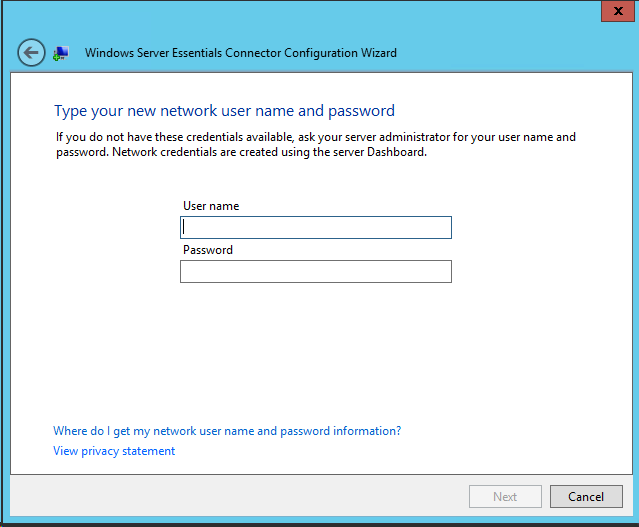
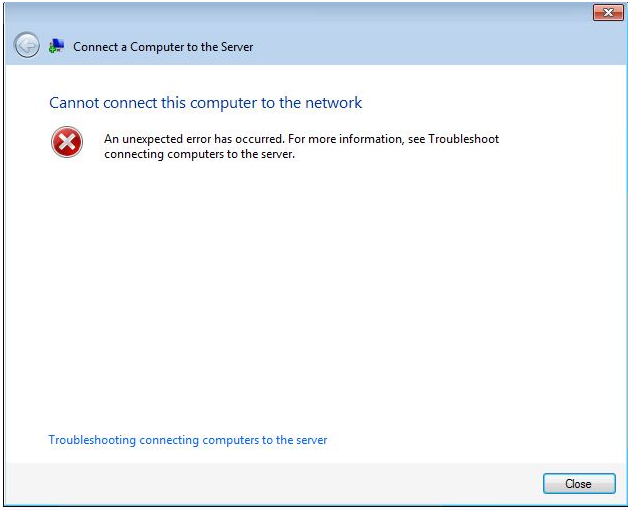
Today I was getting an error “an unknown error has occurred” when trying to use the SBS 2011 Essentials connector to add a computer to the console. In this particular setup, the customer was migrating from Windows 2003 to Windows SBS 2011 Essentials.
[4284] 120810.150151.4347: ClientSetup: Start of ClientDeploy [4284] 120810.150152.2147: General: Initializing…C:\Windows\Temp\Client Deployment Files\ClientDeploy.exe [4284] 120810.150152.2459: ClientSetup: Loading Wizard Data [4284] 120810.150154.0399: ClientSetup: Current DeploymentStatus=Running [4284] 120810.150205.5059: ClientSetup: Showing the Client Deployment Wizard [4284] 120810.150206.6447: ClientSetup: Adding Server Info data in the Product Registry [4284] 120810.150206.8943: ClientSetup: Set the Deployment Sync Event [4760] 120810.150219.6707: ClientSetup: Running ValidateUser Tasks at WizardPage DomainUserCred [4760] 120810.150219.7019: ClientSetup: Entering ConnectorWizardForm.RunTasks [4760] 120810.150219.7019: ClientSetup: Running Task with Id=ClientDeploy.ValidateUser [4760] 120810.150219.8267: ClientSetup: Entering ValidateUserTask.Run [4760] 120810.150219.9047: ClientSetup: Install root cert to local trusted store [4760] 120810.150219.9671: ClientSetup: Validating User [4760] 120810.150219.9671: ClientSetup: Call MachineIdentityManager.GetMachineStatus [4760] 120810.150231.2459: ClientSetup: MachineIdentityManager.GetMachineStatus had errors: ErrorCatalog:OtherError ErrorCode:-2146233087 BaseException: Microsoft.WindowsServerSolutions.Devices.Identity.MachineIdentityException: MachineIdentityManager.GetMachineStatus at Microsoft.WindowsServerSolutions.Devices.Identity.MachineIdentityManager.GetMachineStatus(String serverName, String userName, String password, String machineName, Boolean& isAdmin) at Microsoft.WindowsServerSolutions.ClientSetup.ClientDeploy.ValidateUserTask.Run(WizData data) [4760] 120810.150231.2459: ClientSetup: Exiting ValidateUserTask.Run [4760] 120810.150231.2459: ClientSetup: Task with Id=ClientDeploy.ValidateUser has TaskStatus=Failed [4760] 120810.150231.2459: ClientSetup: Task with Id=ClientDeploy.ValidateUser has RebootStatus=NoReboot [4760] 120810.150231.2459: ClientSetup: Exting ConnectorWizardForm.RunTasks [4284] 120810.150231.2615: ClientSetup: JoinNetwork Tasks returned TaskStatus=Failed [4284] 120810.150233.7887: ClientSetup: Back from the Client Deployment Wizard [4284] 120810.150233.8043: ClientSetup: Saving Wizard Data [4284] 120810.150233.8043: ClientSetup: End of ClientDeploy: ErrorCode=1603
So now I know the error is MachineIdentityManager.GetMachineStatus had errors: ErrorCatalog:OtherError ErrorCode:-2146233087
Let’s get to troubleshooting this issue.
Per other articles and forum posts I read, it was recommended to re-run the wizard a second time. I went ahead and did that, same issue in my case. It was also suggested to run the wizard while logged in as a local admin, non domain joined and I got the same results.
I noticed that when I restarted the new SBS 2011 Essentials server that it would take a very long time till I got a CTRL-ALT-DELETE login screen, basically just sitting there “applying settings”. At first I thought it was caused by my NIC being teamed, but after disabling the team I had the same results. So I can rule out teaming being my issue.
I then took a look at the event logs on the client machine. I did not see any issues related. I thought it might be .NET 4, but I verified I didn’t even have it installed before I ran the wizard. Other postings indicated it could be a .NET issue.
I then attempted to connect to the new server by doing https://SBS-11E:65515/connect and did not get any certificate errors.
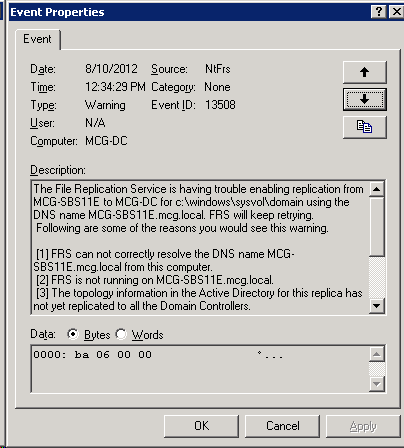
The next step was to look at the server being the issue. I logged in to my existing 2003 Domain Controller and looked at the event logs. I saw NTFRS replication was failing.
So this is a problem. To fix it, I went ahead and attempted to ping the new SBS 2011 Essentials server by FQDN. This failed, so I opened up DNS. I expanded the nodes under the AD zone, looking specifically at _msdcs stub. In that stub, I found references to my SBS 2011 Essentials sever with the wrong IP address, as well as additional entries with the correct IP. I deleted all the ones with the invalid IP address.
The next step was to examine the Reverse DNS entries. In this particular customers case, no Reverse DNS was setup.
I then opened a command prompt on the 2003 server and typed in NET STOP NETLOGON & NET START NETLOGON and pressed enter.
The NETLOGON service restarted. I then tried to ping the SBS 2011 Essentials server by FQDN, for example ping SERVER-SBS11E.internaldomain.local which it now was able to resolve.
I then re-ran the wizard, and this time it stopped me and gave me a warning that I was using my Domain Admin account. I didn’t really care in this case, and proceeded on. The wizard worked correctly and believed I had solved the issue……… in fact, I was so happy to solve it that I updated the Microsoft Forums with my resolution.
After visiting other computers in this clients office and running the wizard, I kept seeing errors in the event log about Group Policies. I thought something was still not fixed, and it might be my Active Directory being damaged. The reason I came to that conclusion was when I first did my site evaluation at this client I noticed if I edited the existing login script by going to \\domain\netlogon that the changes I made never seemed to actually take place when the user logged in. I didn’t think much of it at the time, and was able to resolve my edit by going to the SYSVOL folder and finding the login batch file and editing it.
I went ahead and rebooted the new SBS 2011 Essentials server to see if the startup still hung for a long time, or was now fixed since I fixed the bad DNS issues. The server hung for a long time, so that was not fixed.
Going back to the workstation, I performed a GPUPDATE /FORCE. The results of that were that the workstation could not determine what domain or forest I was in. This was a serious issue that I needed to deal with. Since I thought that AD might be damaged, I did the following:
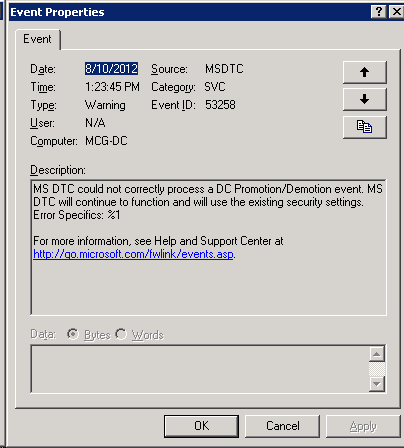
On the Windows 2003 server, I saw in the Applications event viewer the following error, MS DTC could not correctly process a DC Promotion/Demotion event.
The first thing for me to check was the health of Active Directory. I needed to perform a semantic database check for errors.
On the SBS 2011 Essentials server, I went to the Administrative command prompt and typed NET STOP NTDS since this server is running Windows Server 2008, I can stop the directory services without rebooting to safe mode. For full instructions of this procedure, see http://technet.microsoft.com/en-us/library/cc816754(v=ws.10)
Type Y to agree to stop additional services, and then press ENTER.
At the command prompt, type ntdsutil, and then press ENTER.
At the ntdsutil: prompt, type activate instance ntds, and then press ENTER.
At the ntdsutil: prompt, type semantic database analysis, and then press ENTER.
At the semantic checker: prompt, type verbose on, and then press ENTER.
At the semantic checker: prompt, type go fixup, and then press ENTER.
in my case, I found no errors as I received the following:
that is a great thing to have no corruption! Next, type quit, and quit to return you back to a command prompt.
Now we need to start our directory services back up. at the command prompt, type NET START NTDS
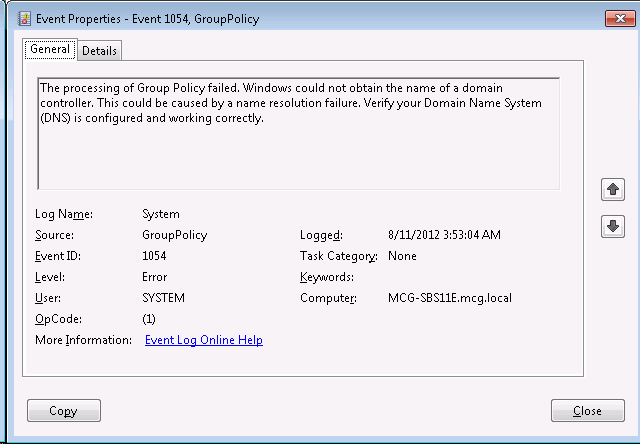
I opened up the event viewer on the SBS 2011 Essentials server, and looking under system, I saw an error showing “The processing of Group Policy failed. Windows could not obtain the name of a domain controller. This could be caused by a name resolution failure. Verify your Domain Name System (DNS) is configured and working correctly.”
and
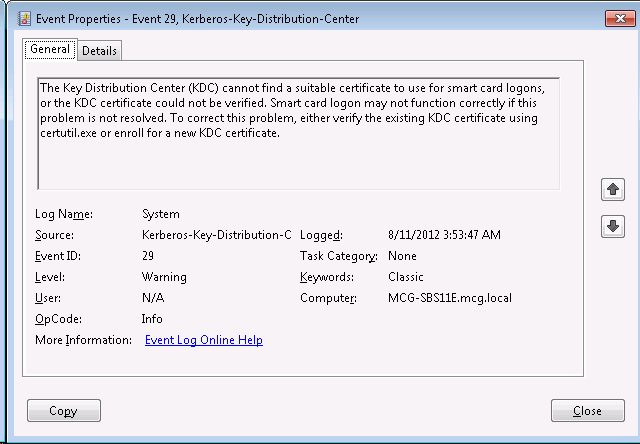
The Key Distribution Center (KDC) cannot find a suitable certificate to use for smart card logons, or the KDC certificate could not be verified. Smart card logon may not function correctly if this problem is not resolved. To correct this problem, either verify the existing KDC certificate using certutil.exe or enroll for a new KDC certificate.
along with
The "Windows default" Policy Module "Initialize" method returned an error. The specified domain either does not exist or could not be contacted. The returned status code is 0x8007054b (1355). The Active Directory containing the Certification Authority could not be contacted.
and
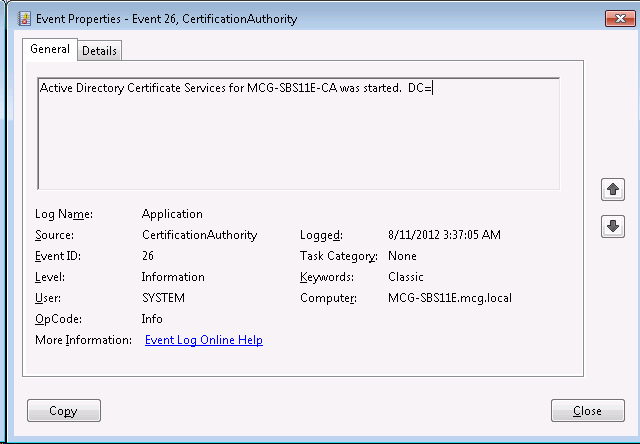
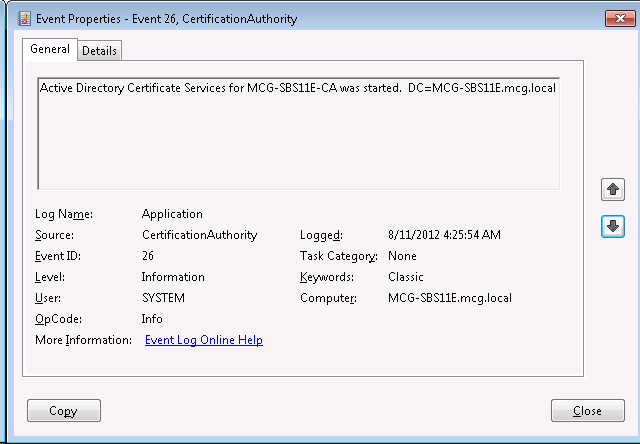
Active Directory Certificate Services for MCG-SBS11E-CA was started. DC=
do you see how DC= nothing above? This is caused when certificate services cannot figure out who is a domain controller.
And finally, this event log error
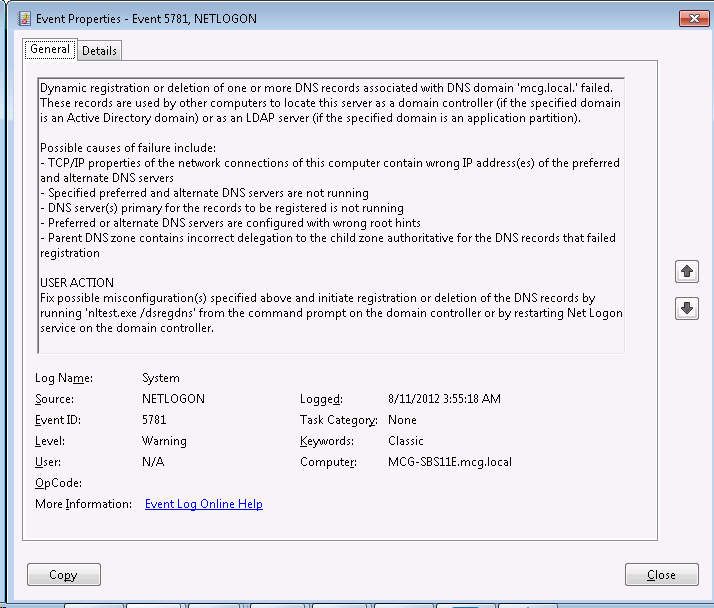
Dynamic registration or deletion of one or more DNS records associated with DNS domain ‘mcg.local.’ failed. These records are used by other computers to locate this server as a domain controller (if the specified domain is an Active Directory domain) or as an LDAP server (if the specified domain is an application partition).
So my issue still exists. It is not corrupted Active Directory, and still is pointing me to DNS as the bottom line.
Here is how I fixed it.
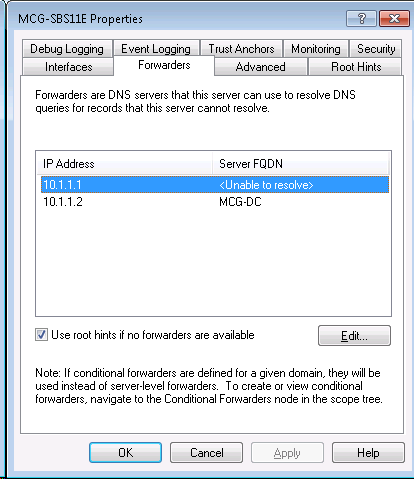
First, I opened up DNS on the SBS 2011 Essentials server. I right clicked on my server and went to properties. I then selected the Forwards TAB.
I noticed that the first entry, 10.1.1.1 was invalid as this is my gateway, and the customer was currently using a home router which didn’t do anything for DNS related actions. My second server, being the old Windows 2003 server was listed, and my end goal once the migration was done was to turn off forwards. I went ahead and removed the 10.1.1.1 server.
I then went to command prompt and typed in nltest.exe /dsregdns . I restarted the DNS service by typing NET STOP DNS & NET START DNS followed by IPCONFIG /RegisterDNS
I then decided to reboot and see if I still had my slow startup issue. After rebooting, it went right to the CTRL-ALT-DELETE screen, no more delay.
I looked at the event logs and now see that my DC= is filled in with the proper information. This is a very good thing!
Recently I was working on a client who is setup with a SBS 2008 server and workstations running Windows 7 Professional SP1. I noticed that when a particular user would login it would take upwards of 10 minutes for the welcome screen to go away and the desktop to be displayed.
As part of the troubleshooting, I had the user login to a different workstation with their same credentials and we experienced the same slow login. when I looked at the event log, I saw the following error:
Log Name: Application Source: Microsoft-Windows-Folder Redirection Date: 4/21/2012 10:57:42 PM Event ID: 502 Task Category: None Level: Error Keywords: User: DOMAIN\firstlast Computer: DOMAIN-PC.DOMAIN.local Description: Failed to apply policy and redirect folder "Documents" to "\\SERVER\RedirectedFolders\firstlast\My Documents". Redirection options=0x9021. The following error occurred: "Failed to copy files from "\\SERVER\RedirectedFolders\firstlast\Documents" to "\\SERVER\RedirectedFolders\firstlast\My Documents"". Error details: "The system call level is not correct. ".
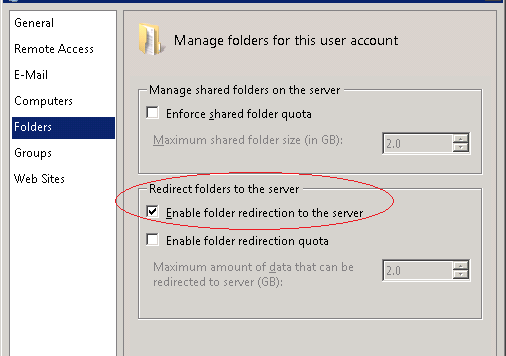
I did some research on this error, and came up with one valid result, which claimed that it was being caused by server quotas. As part of the trouble shooting, I turned off quota’s on the server, however I had previously checked the users properties in the SBS 2008 console and verified Folder Redirection was enabled, but the quota’s box was unchecked.
I do question why the policy was attempting to take the same server and users folder and move files from the “Documents” folder to the “My Documents” folder. As I checked the GPO, it is set to move the files from the old location which is a default setting.
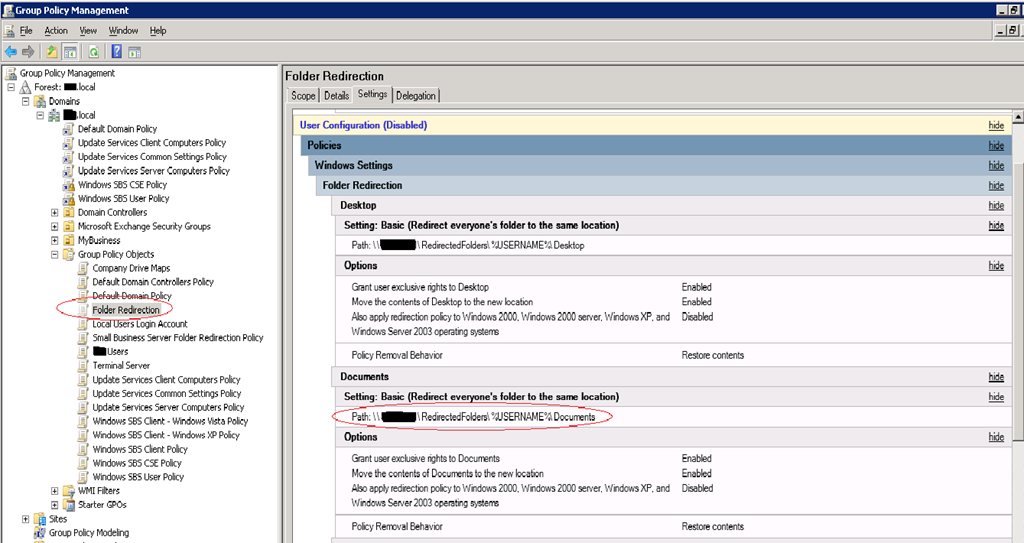
So to take the troubleshooting a step further, I ran GPRESULT /V >C:\gpresult.txt and viewed this text file. I do not see anything out of the ordinary being applied to the computer. Now, when I check the GPO’s on server, I see a old GPO that was created and is no longer being applied. In that GPO, I see the following:
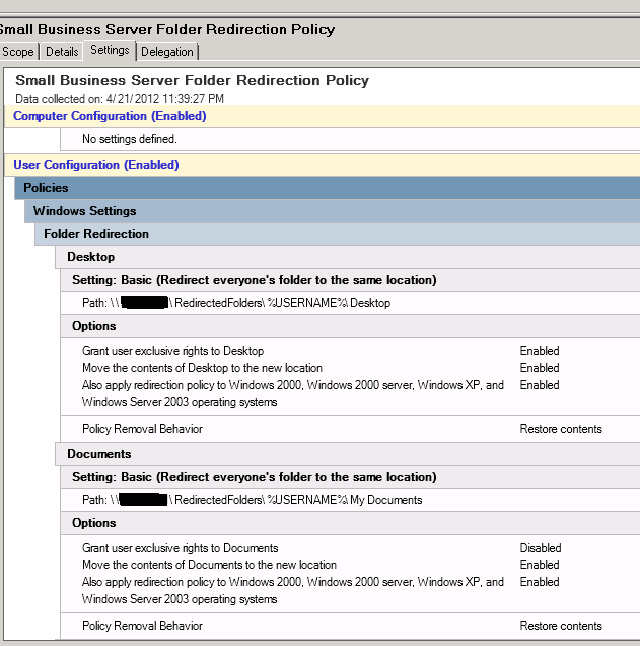
As you can see from this screenshot, the disabled “Folder Redirection” GPO had the policy pointed to the \\SERVER\RedirectedFolders\%USERNAME%\Documents but if we look at the Small Business Server Folder Redirection Policy which is created by the Small Business Server, it is pointed to \\SERVER\RedirectedFolders\%USERNAME%\My Documents as shown below
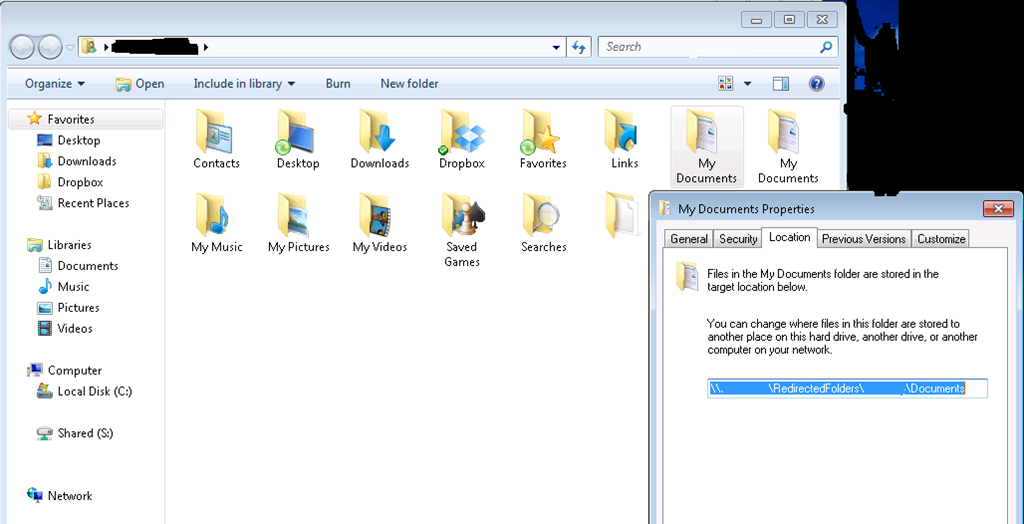
On the Windows 7 machine, when I look at the properties of the “My Documents” folder, I see it is still pointed to the old policy’s setting, of \\SERVER\RedirectedFolders\%USERNAME%\Documents as shown below:
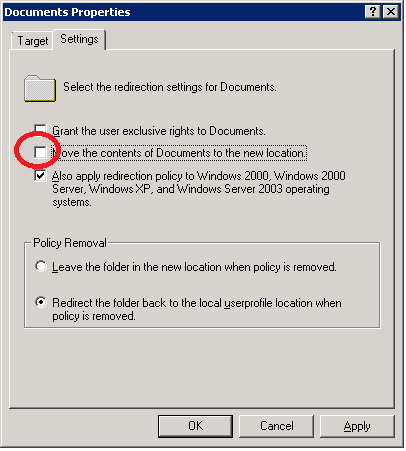
So how do we go about fixing this? Well, the best way to fix this is to edit the current GPO, Small Business Server Folder Redirection Policy. On this GPO, I changed the setting “Move the contents of Documents to the new location” to disabled by unchecking the box as shown below:
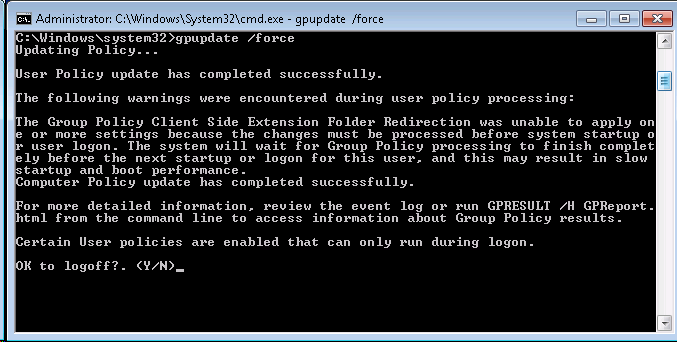
Then, on the Windows 7 machine, at the command prompt type in GPUPDATE /FORCE and then logoff
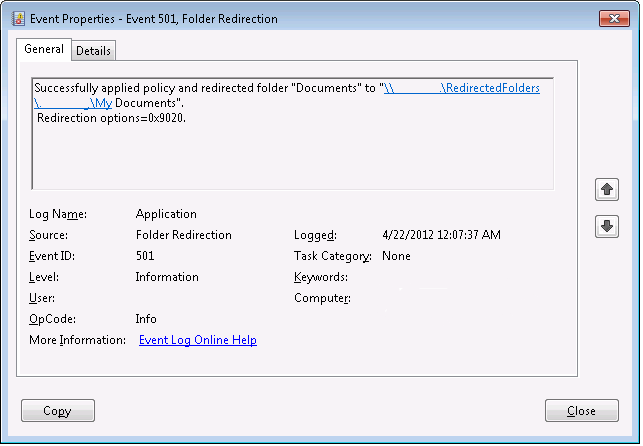
Now I login as that user, and look at the event log. We now see success, as the policy does not need to move the existing “Documents” to “My Documents” and the policy is able to successfully apply as shown below.
Now there is one more step to fix this issue. I will need to copy the data from the “Documents” folder to the “My Documents” folder. When I attempted to look at the old Documents folder, it was now empty. The reason for this, Offline Files are enabled on the Windows 7 machine, and as it couldn’t connect to the previous path, all the time the user was saving documents it was offline as you can see in the previous picture of the properties of My Documents it was missing the green sync icon. So when I logged in to the computer with the fixed policy, the Windows Sync Center determined it was now online and able to write to \\SERVER\RedirectedFolders\firstlast\My Documents , and it has the data in the CSC cache, so it just copied the data back to the server for me. If you don’t have Offline Files enabled, simply copy the data from Documents to My Documents folder. Here is a screenshot showing it now online
If you are wondering why there are two My Documents folders, the second one that is not Sync’d is actually Documents. I just deleted this folder as it is not valid.
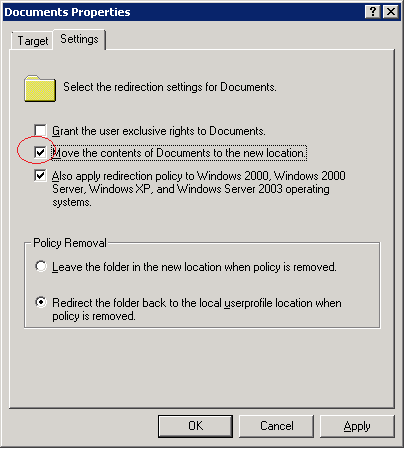
I suggest re-enabling this policy setting once the issue is resolved so that if you have a user who didn’t have this policy applying or in the SBS Console you checked the box and you now want it, that the files are moved from their default location to the server location.
I also saw that Microsoft released a hotfix titled You encounter a long logon time after you enable the "Do not automatically make redirected folders available offline" Group Policy setting in Windows 7 or in Windows Server 2008 R2 at http://support.microsoft.com/kb/2525332 however, in this case it does not apply.
As you can see, the error The system call level is not correct is a very generic error which by just looking at it, tells you almost nothing.

















Recent Comments